Google Sheets
Prerequisites for Configuring Google Sheets Data Source
Basic Requirements
- Spreadsheet Link - The link to the Google spreadsheet you want to sync
Service Account Setup
- Open Service Accounts in Google Cloud console
- Designate the organization and select the existing project if available; otherwise, create a new project
- Create a service account and grant appropriate roles (Viewer role recommended)
- In API Console/Credentials, click on the service account email
- In the keys tab, click on Add Key
- Select JSON as key type and download the generated key (For Service Account Key Authentication method)
- In API Console/Library, select the correct project, search for Google Sheets API & click on ENABLE
- Add the service account email as a viewer to your Google Sheets
Steps to Obtain OAuth Credentials
Set Up a Google Cloud Project
- Log in to the Google Cloud Console
- Create a new project or select an existing one
Enable Required APIs
- Navigate to APIs & Services > Library
- Enable both:
- Google Sheets API
- Google Drive API (if file access is required)
Create OAuth 2.0 Credentials
- Go to APIs & Services > Credentials
- Click Create Credentials > OAuth Client ID
- Configure the OAuth consent screen:
- Provide app name, support email, and authorized domains
- Select Application Type as "Web application"
- Add your application's Redirect URI
Generate Authorization URL
Use the following format:
https://accounts.google.com/o/oauth2/auth?
client_id={CLIENT_ID}&
response_type=code&
redirect_uri={REDIRECT_URI}&
scope=https://www.googleapis.com/auth/spreadsheets https://www.googleapis.com/auth/drive&
access_type=offline&
prompt=consent
Exchange Authorization Code
Make a POST request to:
https://oauth2.googleapis.com/token
The response will include:
{
  "access_token": "ya29.a0AfH6SMCexample",
  "expires_in": 3599,
  "refresh_token": "1//0exampleRefreshToken",
  "scope": "https://www.googleapis.com/auth/spreadsheets https://www.googleapis.com/auth/drive",
  "token_type": "Bearer"
}
Configuring Google Sheets Data Source
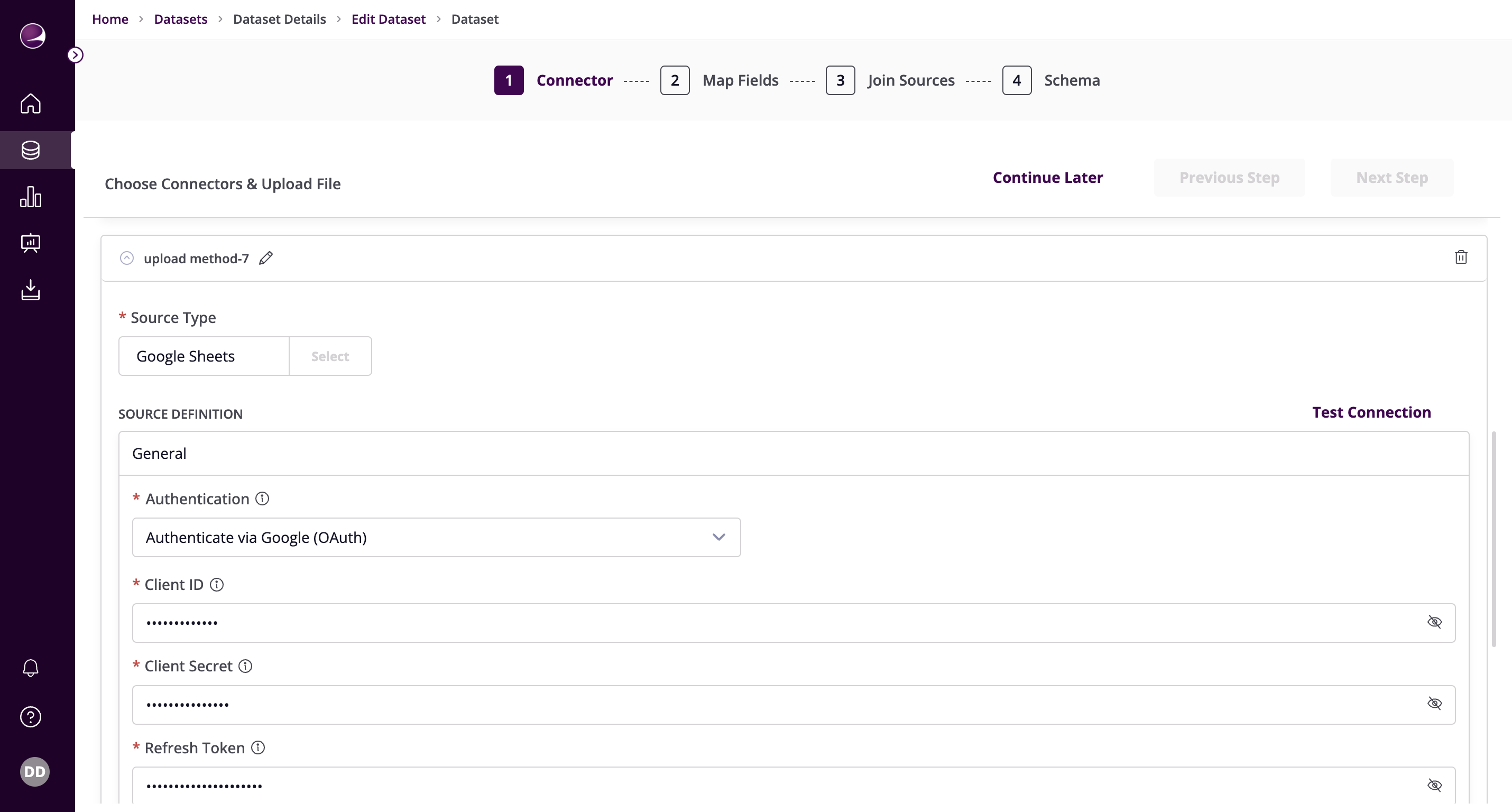
Select the Source Type as Google Sheets
Fill in the required details:
Authentication Methods
Service Account Key Authentication
- Paste the contents of the Key obtained from the prerequisites step

Authenticate via Google (OAuth)
- Paste the Client ID, Client Secret, and Refresh Token
Additional Configuration
- Row Batch Size - Number of rows fetched when making a Google Sheet API call. Defaults to 200
- Spreadsheet Link - Enter the link to the Google spreadsheet you want to sync
- Columns Name Conversion - Columns name conversion using a set of rules
- Example: 'My Name' -> 'my-name'
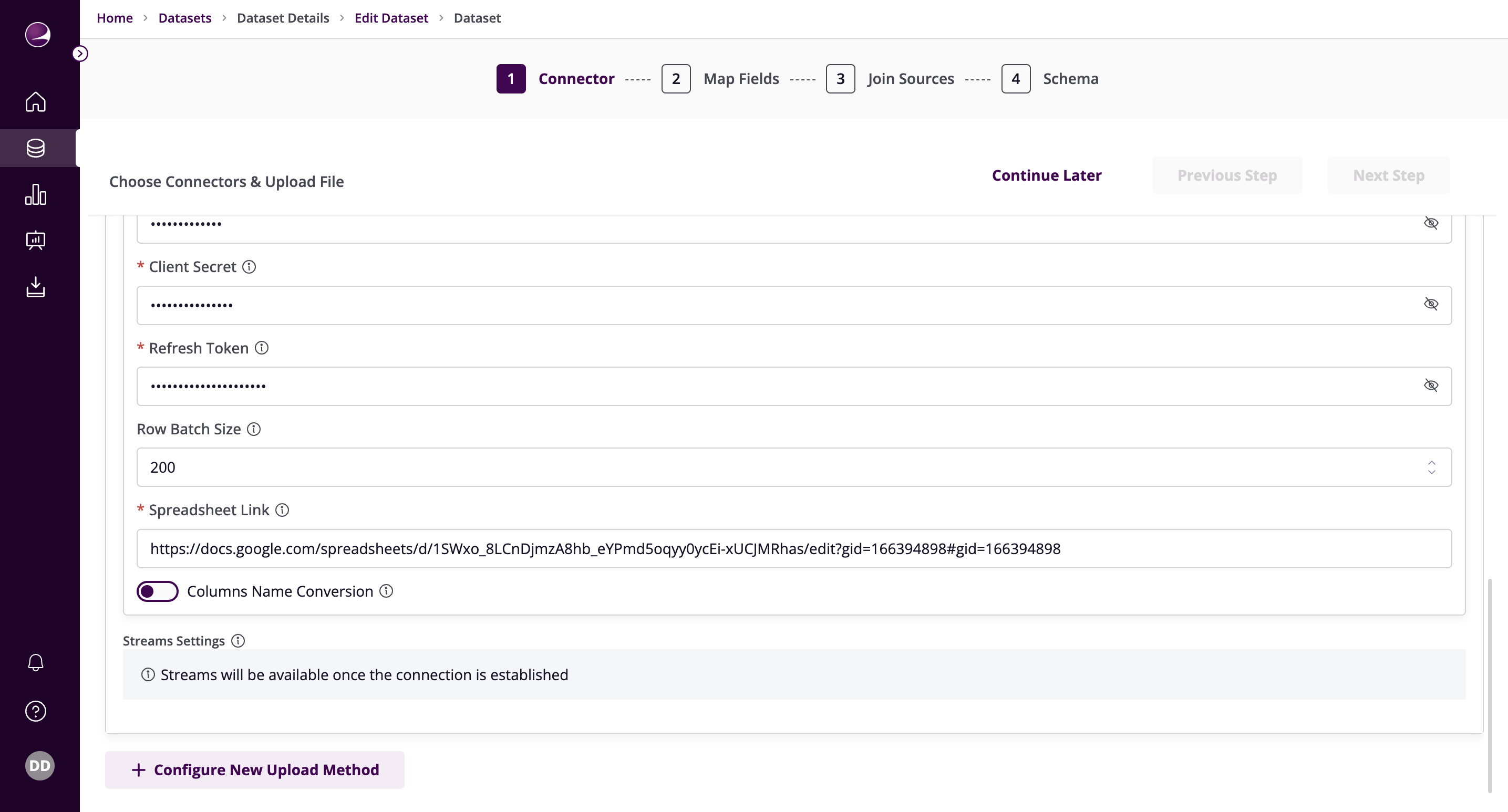
- Click on Test Connection to verify if the connection is established successfully.